INTRODUCTION:
The Hydrogeologic Information System (HIS) provides access to a variety of hydrogeologic data related to groundwater resources. Types of data include borehole geophysical well logs, lithologic well logs, hydrogeologic surfaces, groundwater level and water quality, borehole video logs, and potentiometric surface maps. Data is viewed through a map-based interface where the user can click on a point or area of the map and retrieve the applicable data in the appropriate format for that data type.
The data is from a variety of sources (agencies, consultants, utilities, oil and gas industry, archives etc.) and is suitable for District purposes, but may not be suitable for other purposes.
QUICK INSTRUCTIONS:
On the left side, use the dropdown arrows of the boxes to make sure SJRWMD is showing in the Site dropdown box and BASEMAP is showing in the Load Map box. Press the Load Map button to begin. The Map tab is activated, with a map of county boundaries and the District boundary.
Click on the Map Views accordion box on the left to access a data source. Map Views typically plot points based on a query or table and may have a simple basemap for orientation.
Use
the Zoom 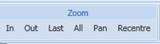 features to
navigate around the map. If you need a more detailed background map such as a
USGS topographic map or imagery, click on the Layers accordion box and
turn on a background layer. These can take some time to load however.
features to
navigate around the map. If you need a more detailed background map such as a
USGS topographic map or imagery, click on the Layers accordion box and
turn on a background layer. These can take some time to load however.
Click
on the Investigate-Start  button at
the top. Move your cursor to the desired point and click. Results are shown to
the right of the map. Depending on the type of data you are accessing, there
may be table data in Location Properties, a graphic of the log data in Logs,
or options for graphing (water level, water quality) in Temporal Data.
button at
the top. Move your cursor to the desired point and click. Results are shown to
the right of the map. Depending on the type of data you are accessing, there
may be table data in Location Properties, a graphic of the log data in Logs,
or options for graphing (water level, water quality) in Temporal Data.
You
can use the Cross Section  tools by
clicking Start New Line then clicking on the map at points where you
want a section. When you reach the end of your line click Generate and a
section will be drawn. Change the Vert Exag
for scale changes, the Log Exag to make logs
wider, or the Offset to include logs a further distance from where you
drew the line.
tools by
clicking Start New Line then clicking on the map at points where you
want a section. When you reach the end of your line click Generate and a
section will be drawn. Change the Vert Exag
for scale changes, the Log Exag to make logs
wider, or the Offset to include logs a further distance from where you
drew the line.
In each of the sections there are multiple options for adjusting scales and data presentation to suit your needs. Online video tutorials are available below to provide this higher level of detail.
These will start a You Tube video: INVESTIGATE DEMO MOVIE CROSS SECTION DEMO MOVIE TEMPORAL DATA DEMO MOVIE
These are in MPG format: INVESTIGATE DEMO MOVIE CROSS SECTION DEMO MOVIE TEMPORAL DATA DEMO MOVIE